Dear customer,
Please note that the use of paper code cards has ended.

From now on, you will need either the code app or a code calculator as a means of authentication when logging in to Netbank. If you do not yet have the activation code and the temporary PIN needed for activating the code app, you can get them by calling Nordea Business Centre, tel 0200 26262. After that you can start using the code app right away. Alternatively, you can order the code calculator. Read more about the code calculator. 

What is the Nordea Codes app?

The code app is part of Nordea's access codes. Nordea Codes is a downloadable app for mobile devices which you can use to identify yourself and confirm transactions in our Netbank, Mobile Bank or by contacting Nordea Customer Service.

Tip: it is worthwhile to download the code app on several mobile devices.

If you cannot use the code app, you can also start using the code calculator. Read more about the code calculator here. 

Benefits of the code app

  • Access codes always in your mobile device.
  • No need to carry a separate code card or strike out codes.
  • You will never run out of codes.
  • Secure and easy to use.
  • It is easy to give additional payment confirmation.
  • You can verify that a phone call you receive actually comes from Nordea.
  • You can confirm your online payments securely.

On what devices does the code app work?

The Nordea code app works with iPhone and Android phones as well as iPad and Android tablets using the following operating system versions:

  • iOS 10 and later versions
  • Android 6 and later versions.

What should be done if you switch phones or your phone is lost?

  • Log in to your Classic Netbank with the codes app of your old mobile device, with a code calculator or with a code card.  If you cannot log in to the Netbank, please contact Nordea Business Centre
  • Select Settings > Activate the codes app.
  • After the confirmation, you will receive the codes app's activation code to your Netbank's Mail. You will receive a temporary PIN code by regular mail within 2–5 banking days.
  • Download the code app from an app store to your new mobile device.
  • Note that you need both the one-time activation code and the temporary PIN code for the activation. 
  • NB If you enter the activation code before the temporary PIN code has arrived, the activation code will no longer work.
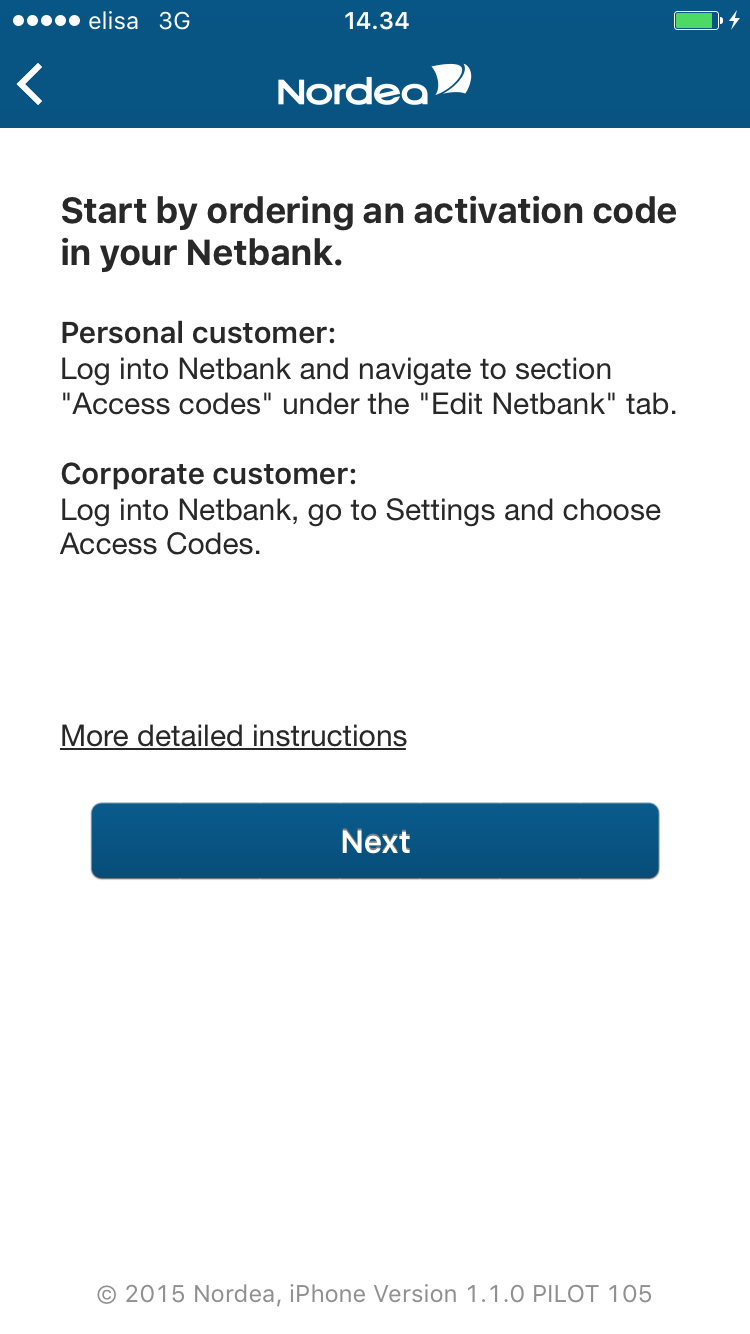
  • Continue the downloading according to the instructions of the app. You will find related screen shots lower on this page.

If possible, download the code app on more than one mobile device. 

Download Nordea Codes app

Download now

How to start using the code app

If you wish to have help with the installation, please contact Nordea Business Centre. 

1.

Download the code app from your mobile device's app store. If you already have the code app in personal use, for example, see the instructions on the bottom of the page for how to add another user account.

2.

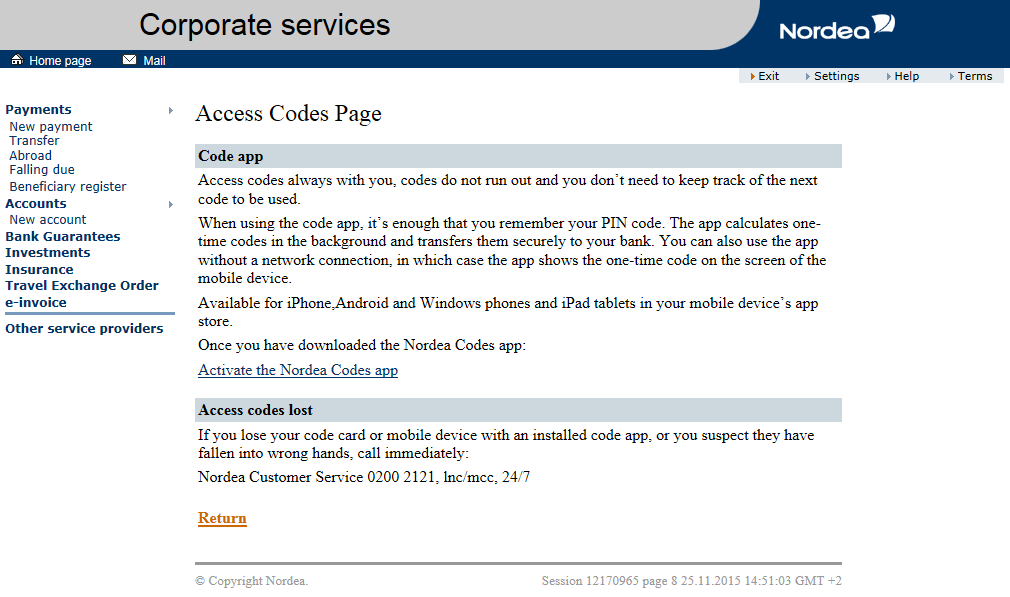
After you have downloaded the app, start the activation process of the code app in Netbank.

3.

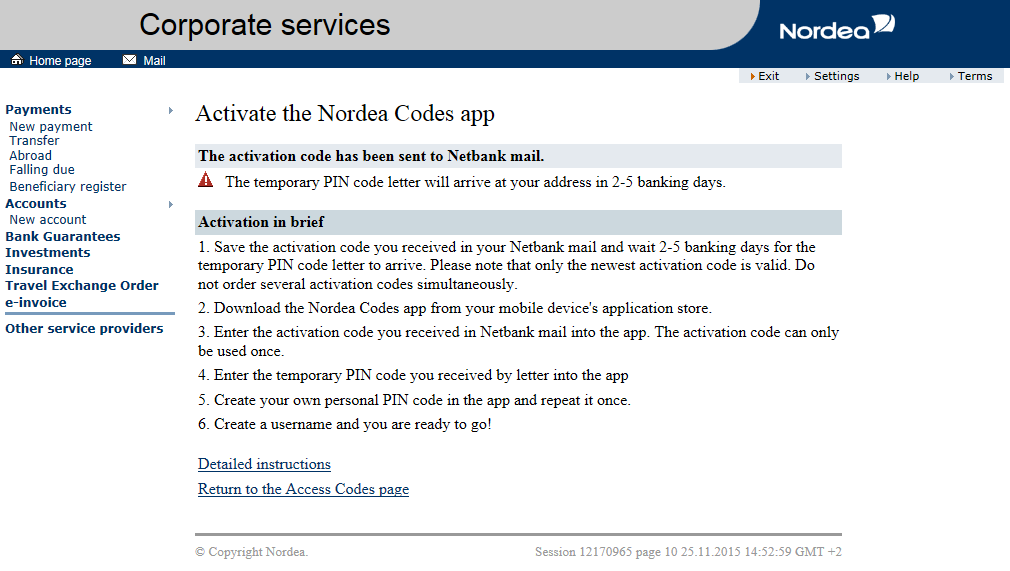
After you have confirmed that you will start using the app, you will receive the app's activation code in Netbank's Mail. You will receive a temporary PIN code by letter within 2–5 days. You will need both codes to activate the code app.
Please do not key in the activation code in the app before you have received the PIN code by post.

4.

After you have received the temporary PIN code by post, you can proceed to the next stage and continue to activate the app on your mobile device. You will need both the activation code and the temporary PIN code to activate the app.

Take into use in Netbank

1. Log into Netbank. Navigate to section "Access codes" under the "Edit Netbank" tab. Click the 'Take Nordea Codes app into use' link. 

yritys-pankkitunnukset

2. Select a verified phone number to which the app's activation code will be sent. If you don’t have a verified phone number, confirm your number by calling the toll free automatic phone number authentication service at 0800 170 777, from the number you wish to confirm. When calling, you must identify yourself with the code card. You can now continue the activation process by clicking “Take Nordea Codes app into use” link.

yritys-pankkitunnukset-kayttoonotto

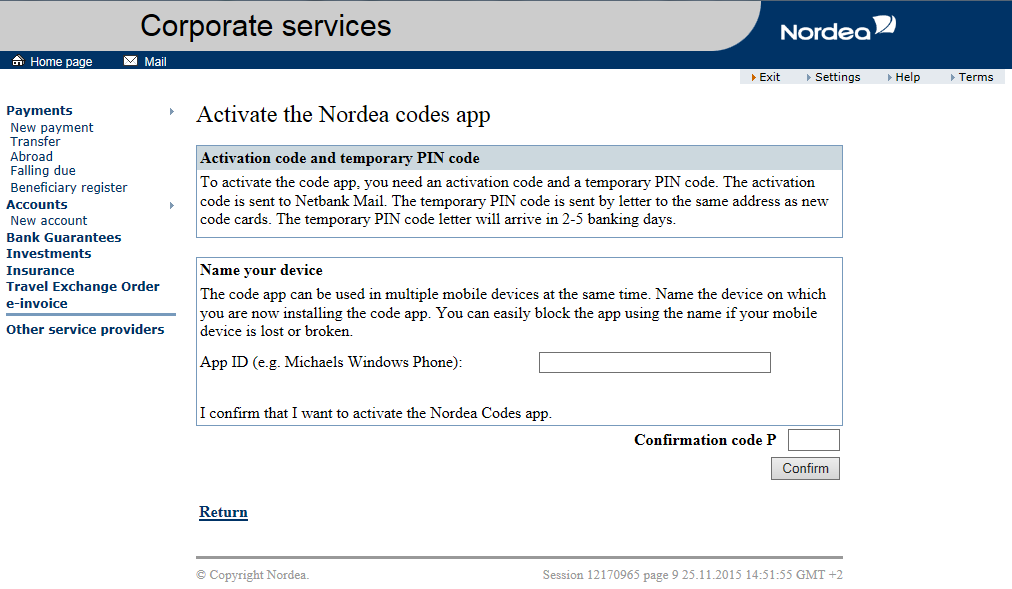
3. Name also the mobile device e.g. Lauras WP to which you are going to install/download the app. This way it will be easy to close the app when necessary. Click Continue.

Confirm the taking into use of the code app with a confirmation code from the code card.

yritys-pankkitunnukset-kayttoonotto-ohjeet

4. After the confirmation you will receive the app's activation code to the mobile phone number you have chosen.

Now you will find in Netbank short instructions on how to implement the app and the temporary PIN code needed to activate the app. Leave the Netbank page open and continue to implement the app in your mobile device.

Take into use in your mobile device

Please do not key in the activation code in the app before you have received the PIN code by post.

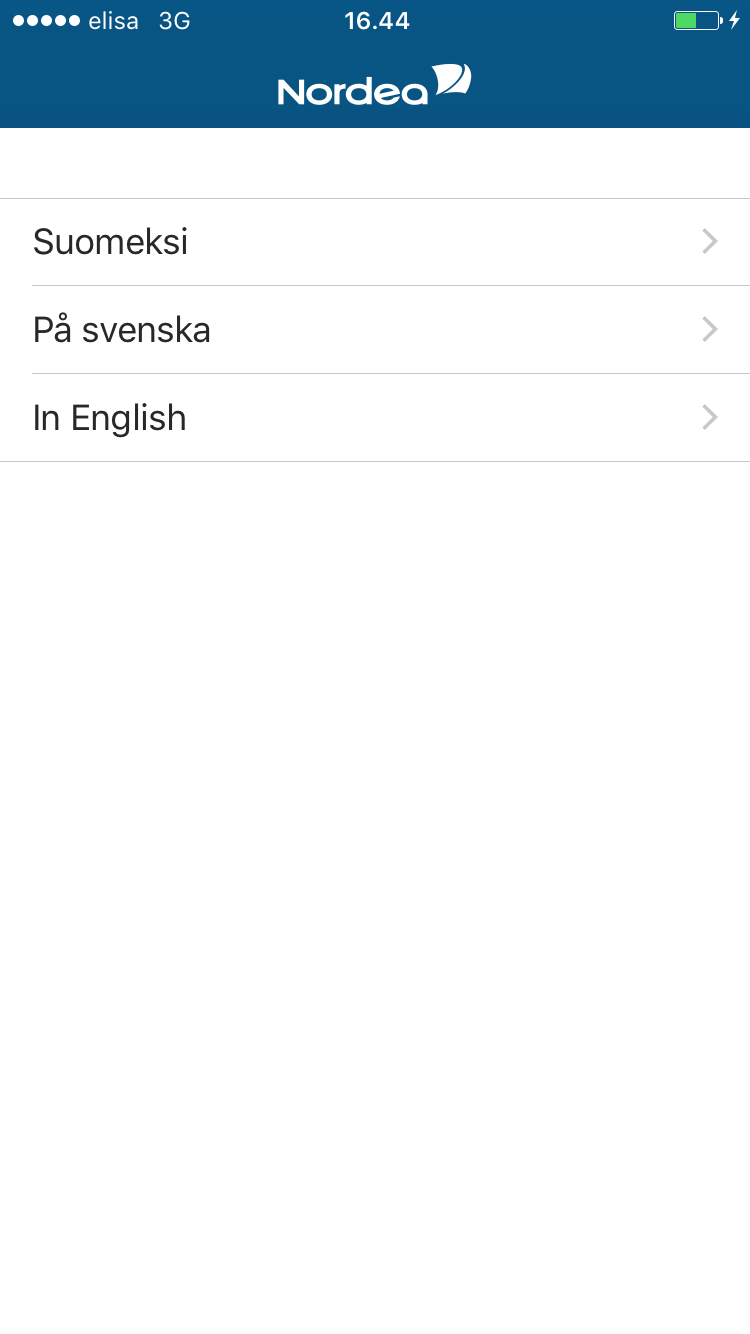
1. Open the Nordea Codes app in your mobile device.
tunnuslukusovellus-kayttoonotto-1 tunnuslukusovellus-kayttoonotto-2 

2. Select the language in which you want to use the code app. You can change the language in the code app's menu after you have started to use the app.

3. If you have not yet taken the app into use in Netbank, do it now. You will find the instructions in the code app.

If you have already taken the code app into use in Netbank, click Next.
tunnuslukusovellus-kayttoonotto-3 

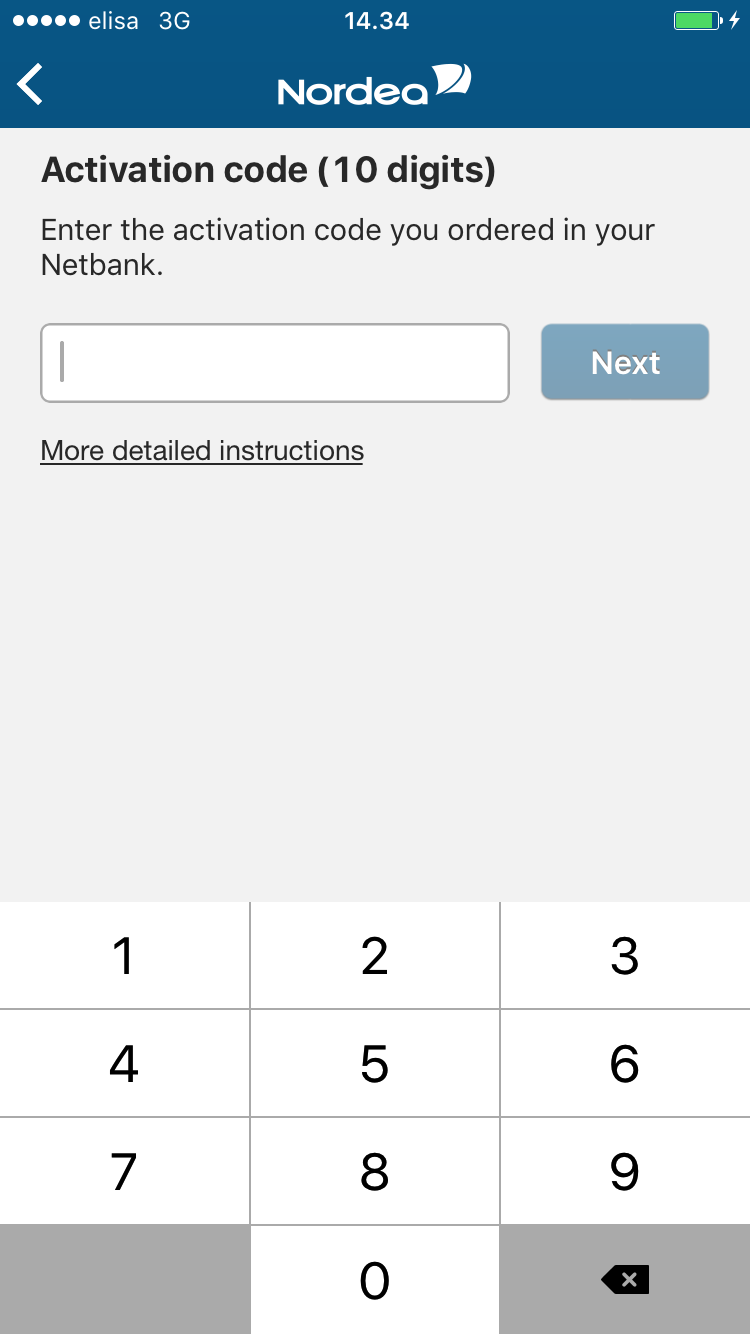
4. Enter the activation code you received in an SMS and click Next. Write the activation code down on paper, if necessary. The activation code is a single-use code. 
tunnuslukusovellus-kayttoonotto-4 

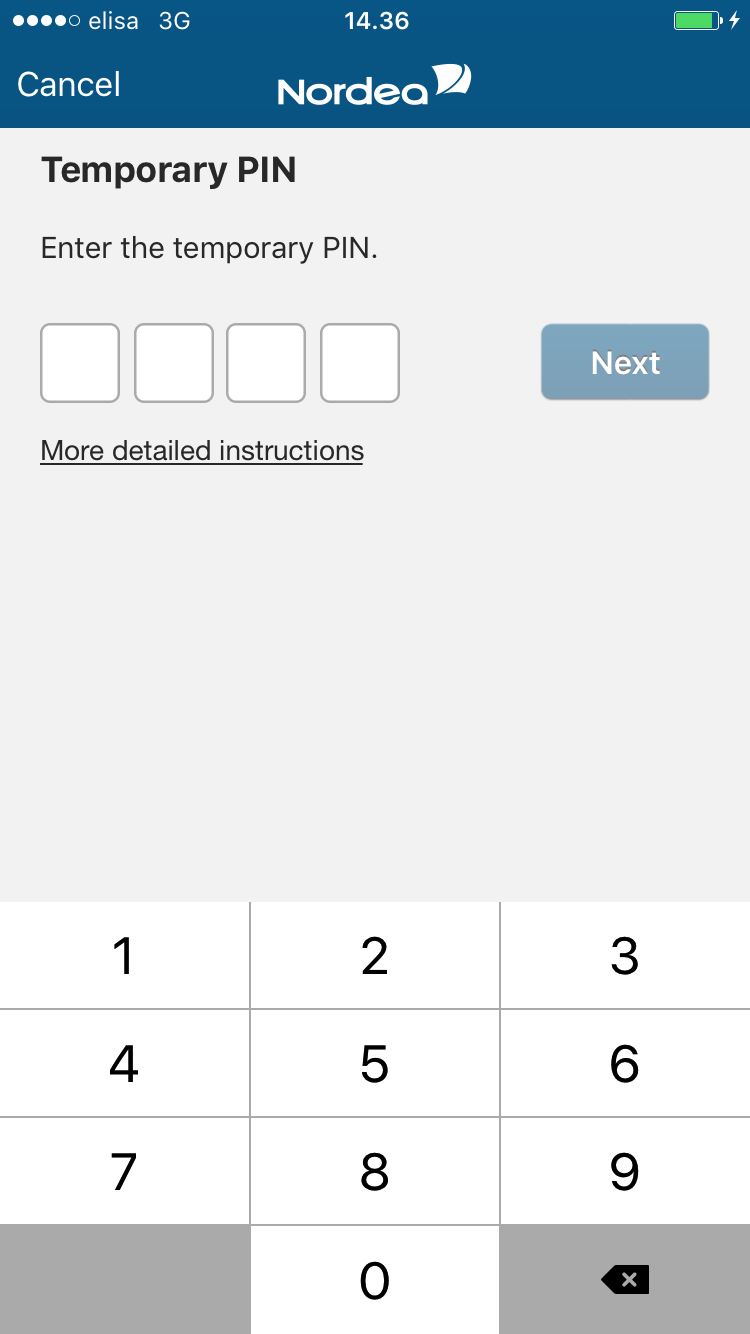
5.  Enter your temporary PIN code shown in Netbank and click Next.

Note! If you click the Cancel button, you will be transferred to the first activation step. As the activation code is single-use, you will need a new activation code in order to continue. Restart the take into use flow of the app and you will receive a new activation code in an SMS and you will see a new temporary PIN code in Netbank.
tunnuslukusovellus-kayttoonotto-5 

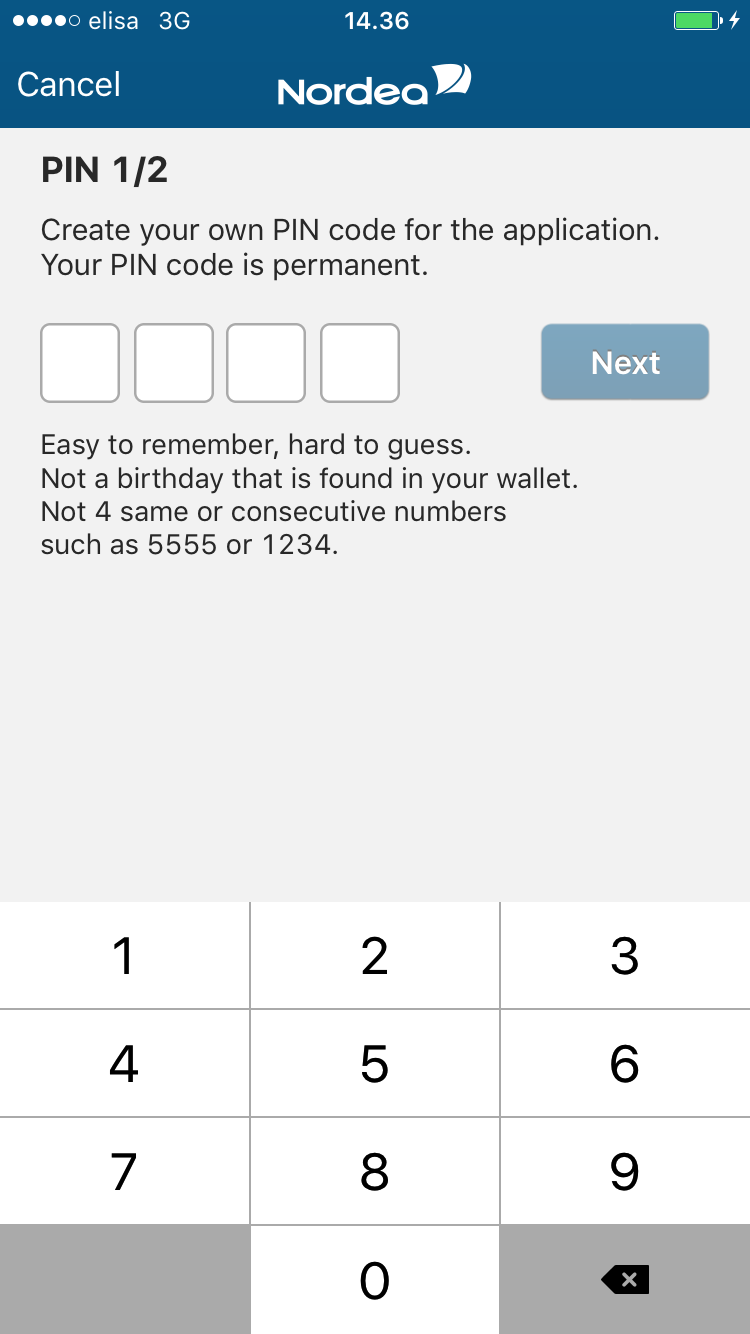
6. Now create your own personal PIN for the code app. The PIN code is permanent and you can change it after you have finished the take into use flow from the app's menu, if you want to.

When you enter the last digit of the four-digit PIN code, the app will automatically transfer you to step 7.
tunnuslukusovellus-kayttoonotto-6 

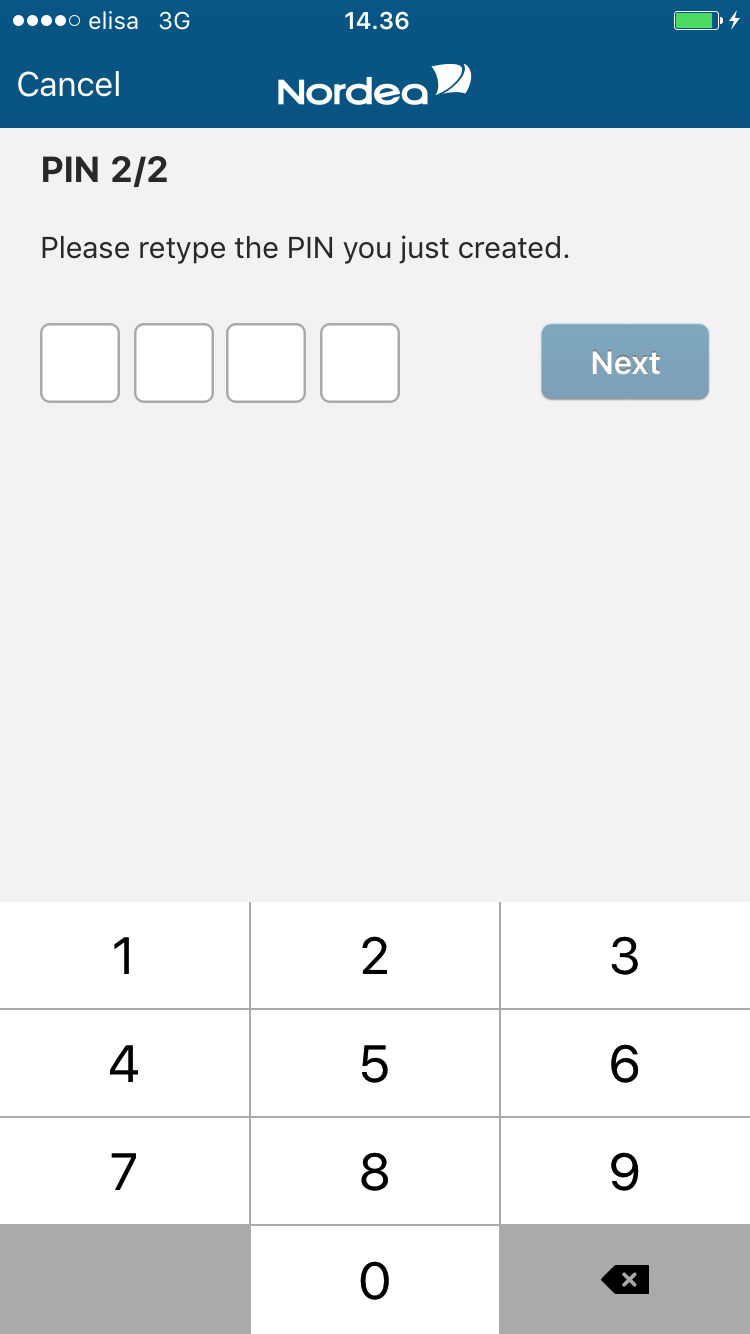
7. Re-enter the PIN code you have created and click Next.
tunnuslukusovellus-kayttoonotto-7 

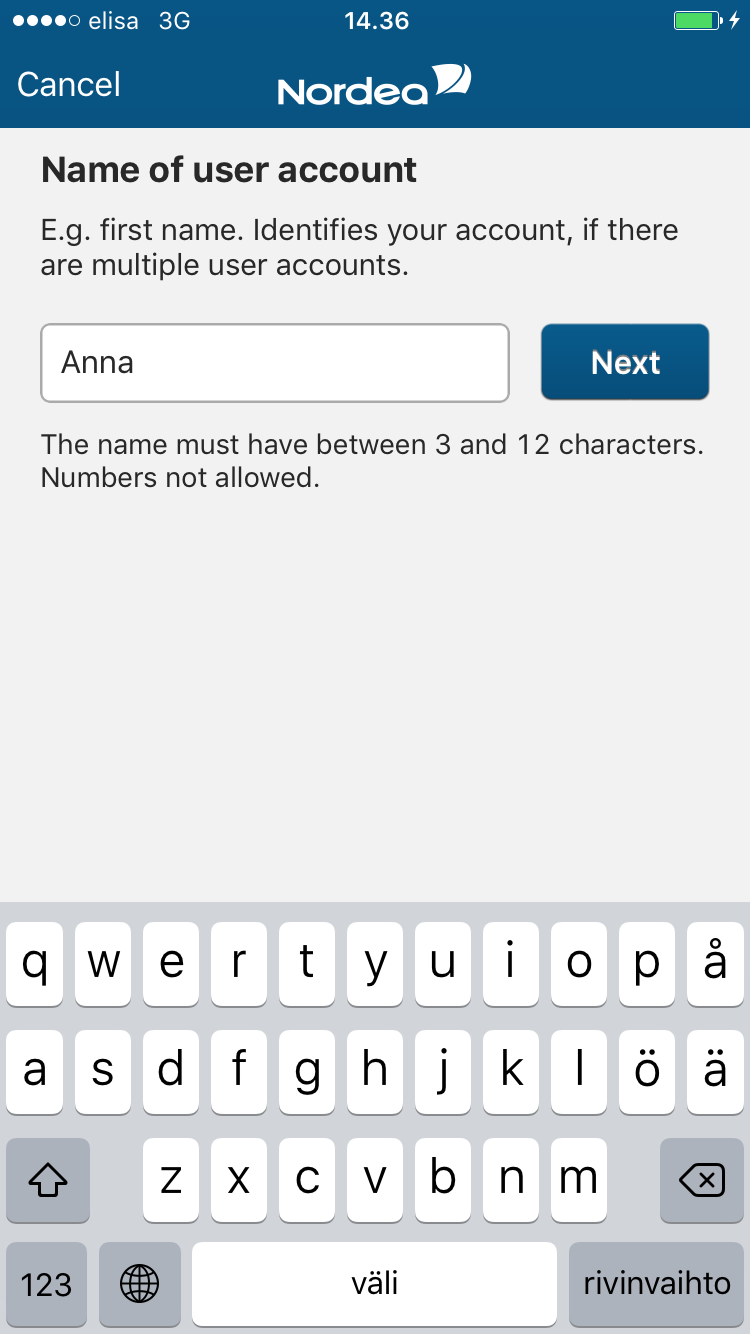
8. Give a name to your user account, your own name, for example, and click Next.

The name may contain 3 to 12 characters and it cannot contain numbers.

Note! If you click the Cancel button, you will be transferred to the first activation step. As the activation code is single-use, you will need a new activation code in order to continue.
tunnuslukusovellus-kayttoonotto-8 

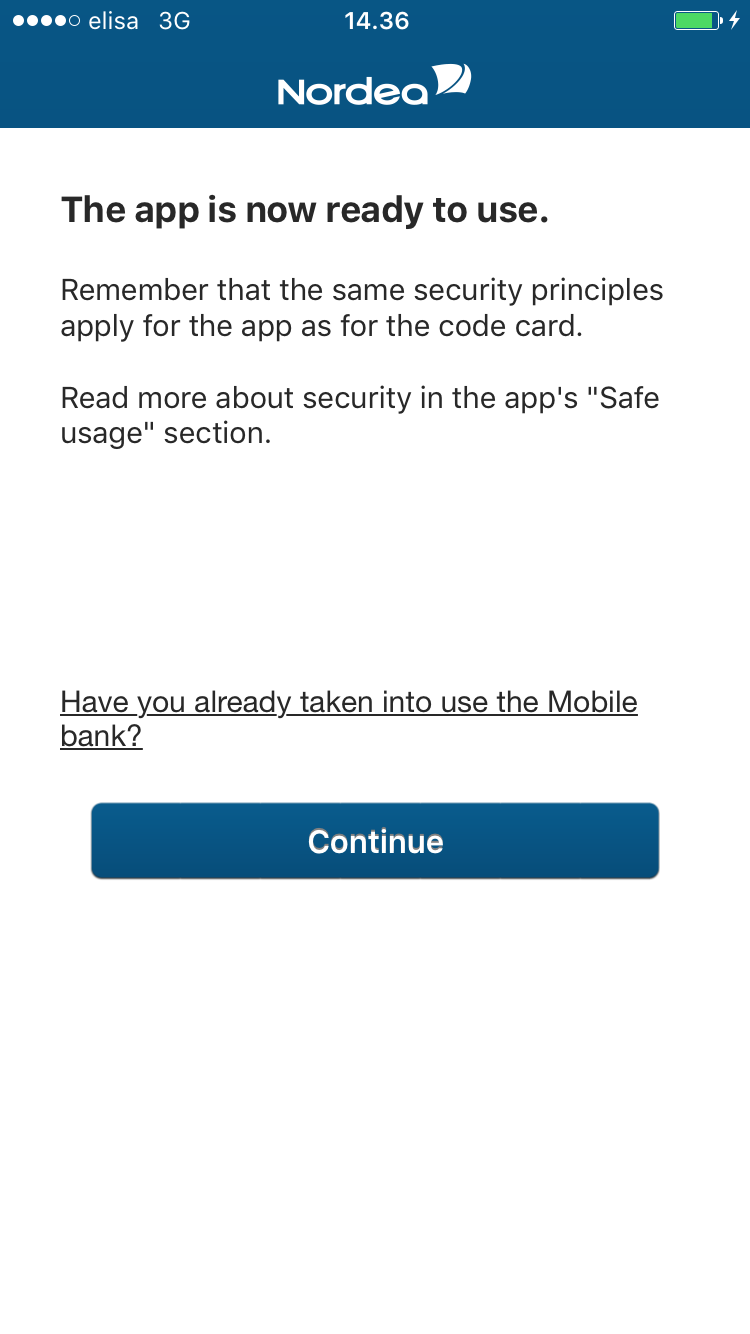
9. The app is ready for use. Read the security instructions and click Continue. 
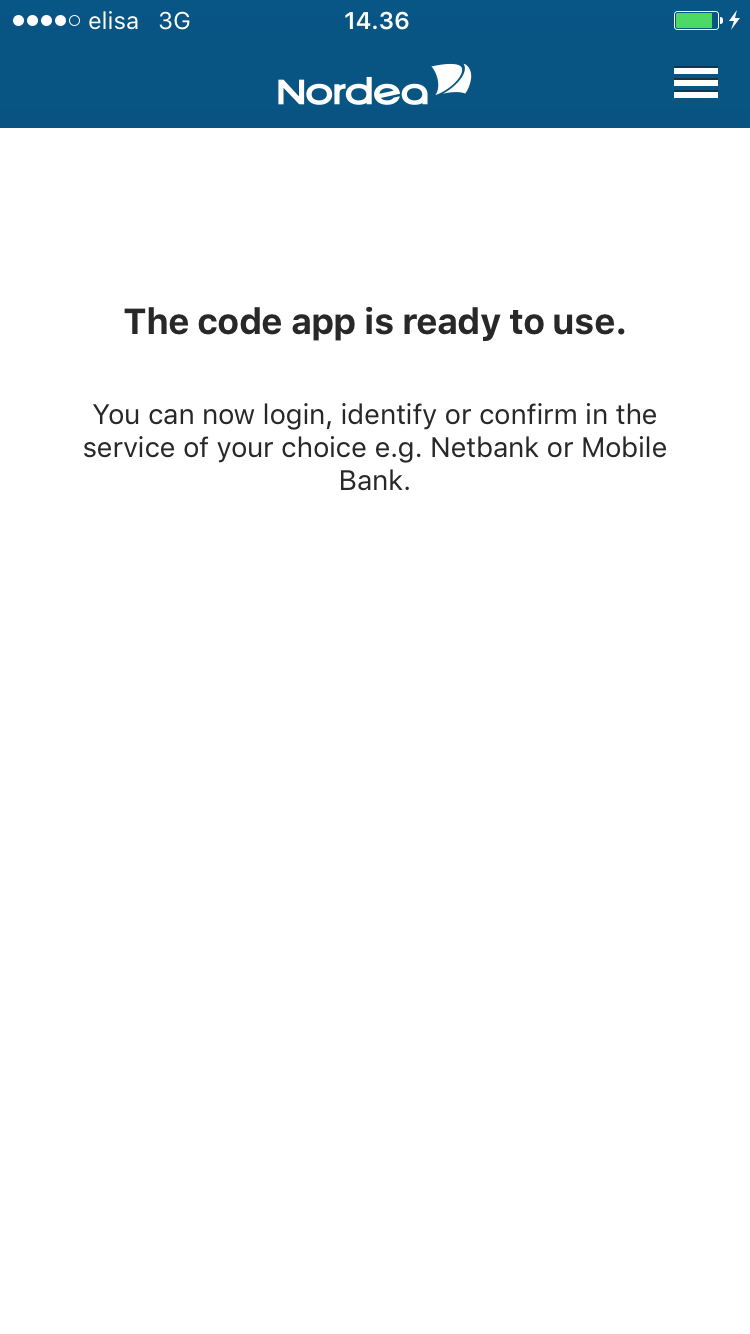
tunnuslukusovellus-kayttoonotto-9 

10. The code app is available to you in the same services you now use with the code card. You can now close the app.

Note! Your code card is still valid. Remember to take good care of it. If necessary, you can use the code card alongside the app, if your mobile device is broken or if you have lost it. You can choose the login method in the service you intend to use.

Adding a new user account into the code app

If you wish, you can manage both your personal banking and several companies’ banking with the same code app by creating multiple user accounts.

  1. Open the app and click the menu in the upper right corner.
  2. Select “User settings” and
  3. then “Add user”.
  4. Select “Nordea Suomi” and after that
  5. choose the language.
  6. Start adding a user by following the instructions in the app.

Tip: download the code app on several mobile devices.


Security

Secure use of online access codes

Never surrender your access codes to another person. Memorise your user ID and the PIN code to Nordea Codes. Keep your user ID separate from your code app.

How does the app work?

When you enter your personal PIN in the code app, it will give changing transaction-specific codes to you. If your mobile device has a data connection, the app will send the code to Nordea in an encrypted network on your behalf.

Without a data connection, the app will show the code on the mobile device's display, where you can copy it to the service you want to use.

The app's security is based on four factors: PIN code, mobile device, access codes, and connection. Always make sure that the device you use is passcode-protected. Always check each transaction and never confirm transactions you have not initiated yourself.

PIN code

  • Only you know your PIN code.
  • The code is both application- and device-specific.
  • If you enter an incorrect PIN code five times in a row, the app will be locked for 24 hours.
  • The PIN code will not be saved on the mobile device. The PIN code will be erased from the device memory as soon as the app has finished calculating one-time codes

Codes

  • The app sends one-time codes to the bank in the background.
  • There are three types of one-time codes depending on usage: Login, Confirmation and Identification.
  • The codes are single-use and transaction-specific.
  • The codes used for confirmation are time-bound.

Mobile device

  • The code app is tied to the device. If someone tries to copy the app to another device, the copied version will not work.
  • The other apps in a mobile device cannot access the information of the code app.
  • If the device's data security is broken, the code app's information will be automatically deleted.

Connection

The connection between the code app and Nordea is SSL/TLS encrypted.

The Nordea code app works on Apple and Android devices in following versions:

  • iOS 10 or later
  • Android 6 or later or Android 4